7 Tips to Fix Android Battery Drain Caused by Weak Signal
Your phone isn't dying, it's just working too hard. Here's how weak signal causes fast battery drain and what to do about it.
 By Eleanor Garcia
Updated August 28, 2026
By Eleanor Garcia
Updated August 28, 2026
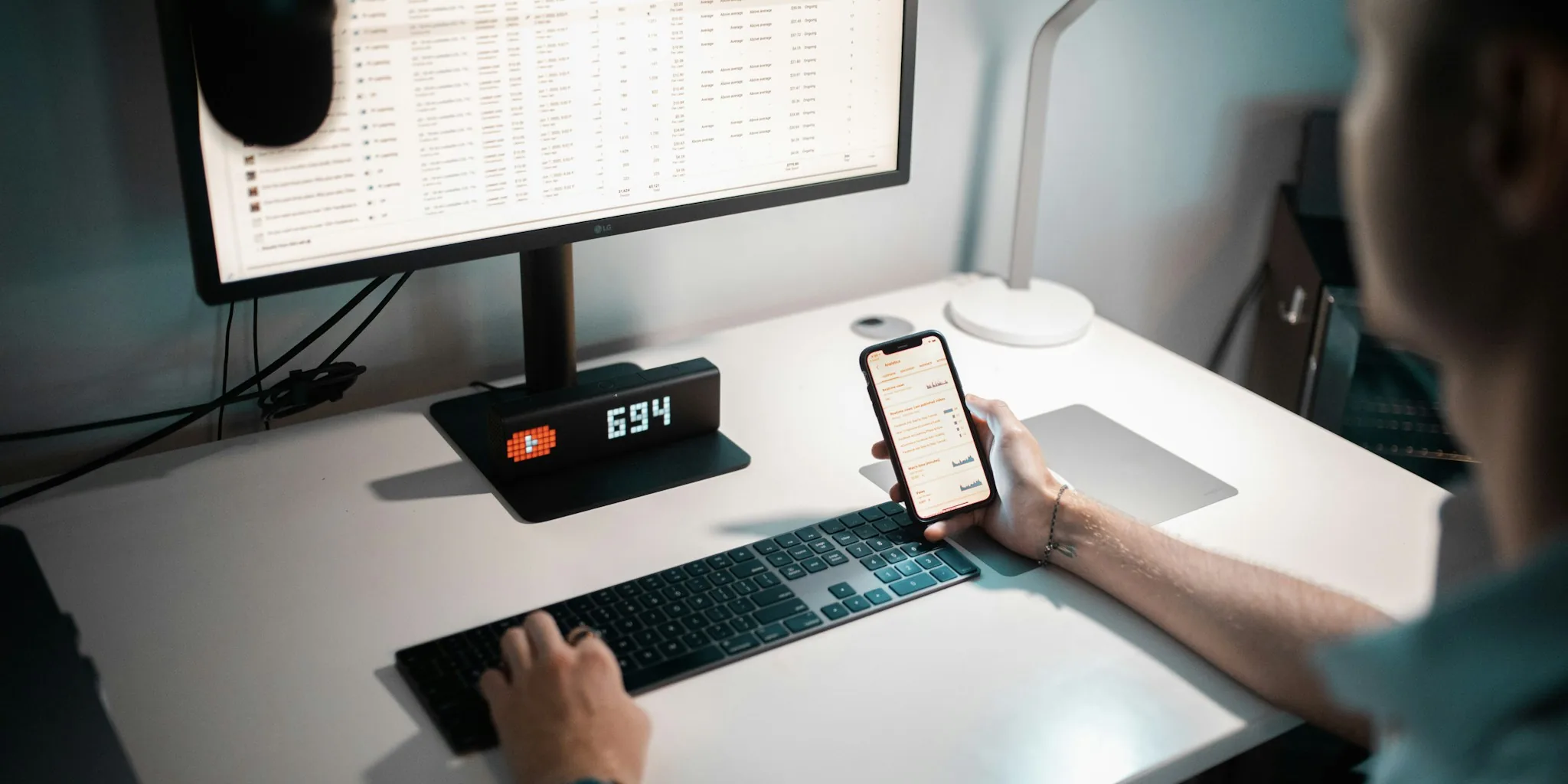
You might think your Android phone’s battery is wearing out when it drains unusually fast at home, but the real culprit could be hiding in your network settings. A weak cellular signal forces your phone to work much harder in the background, constantly searching for a stable connection even when you’re not actively using the device. Understanding this relationship between signal strength and battery life can help you troubleshoot the problem before assuming your hardware is failing.
Why Your Phone Works Harder in Low Signal Areas
Your smartphone is constantly communicating with nearby cell towers, even when the screen is off and the device sits untouched on your desk. When you have a strong signal, your phone’s cellular radio maintains the connection with minimal power consumption. A weak signal changes everything. Instead of simply accepting a poor connection, your phone must work harder to maintain it, reconnect, or search for a better signal. This background effort consumes significant battery power throughout the day, which explains why you might lose charge quickly in certain locations while the phone lasts longer when you’re out and about in areas with stronger reception.
Tip 1: Check Your Actual Signal Strength Number
Those signal bars at the top of your screen don’t tell the complete story. Your phone has a detailed signal strength reading measured in dBm (Decibel-milliwatts) that reveals the real picture. To find this number on a Pixel phone, open Settings, scroll to About phone, and look for signal strength. The exact menu location varies by manufacturer and Android version, but the important thing is locating that dBm reading rather than relying solely on the visual bars.
Remember that closer to zero is better when reading dBm numbers. A reading around negative 80 dBm or better indicates strong signal. Readings in the negative 90s mean your signal is weakening, while anything below negative 100 dBm means your phone faces a genuinely poor connection. This number-based approach gives you concrete data about whether signal strength is actually your problem.
Tip 2: Walk Around Your Home with the Signal Screen Open
Take your phone from room to room while watching the dBm number change. You’ll likely discover dramatic variations depending on where you stand. Your desk might show a terrible signal, but moving a few feet closer to a window could improve the reading by 20 dBm or more. Those signal bars would never reveal these significant differences, but the actual dBm reading shows exactly where your phone struggles most. This simple experiment identifies problem spots in your home where your device must work hardest to maintain connectivity.
Tip 3: Relocate Your Workspace Closer to Windows
Once you know where your signal is strongest, move your primary workspace to that location. Positioning your desk near a window, especially if the window faces the direction of your carrier’s nearest cell tower, can dramatically improve signal strength. Even a modest relocation of several feet might reduce the background work your phone performs, slowing battery drain noticeably during work-from-home days. This doesn’t require any technical changes, just a simple physical rearrangement of your space.
Tip 4: Enable WiFi Calling on Your Device
WiFi calling allows your phone to route calls and messages through your home WiFi network instead of relying entirely on cellular signal. This feature works on most modern Android phones and is especially valuable in areas with weak cellular reception. When enabled, your phone uses your more reliable home WiFi connection for communications, reducing the strain on the cellular radio. This combination of better signal positioning and WiFi calling can substantially decrease the background work your phone performs and extend battery life throughout the day.
Tip 5: Evaluate Your Router Placement
If weak signal is your primary issue and you’re using WiFi calling, your router’s location matters too. Place it centrally in your home and away from obstacles like walls or metal objects that block signal. A well-positioned router with strong coverage throughout your space ensures your phone can rely on WiFi when cellular reception is poor. For those wanting to upgrade, WiFi routers under 200 dollars offer solid performance for typical home needs without excessive expense.
Tip 6: Check for Background Apps Worsening the Problem

Weak signal amplifies battery drain, but background apps can compound the issue. Apps constantly syncing data or checking for updates work even harder when fighting against poor signal. Review your battery usage settings to identify apps consuming excessive power, particularly those using location services or continuous data connections. Disabling background activity for non-essential apps reduces the total drain your phone experiences in weak signal areas.
Tip 7: Monitor Signal Before Blaming Battery Health
Before concluding your battery is aging or defective, check signal strength first. Many people assume rapid battery drain means hardware failure and start shopping for replacement phones when the real problem is simply environmental. Signal quality directly impacts power consumption, so weak reception in specific locations or rooms explains mysterious drain patterns. This approach saves money and frustration by addressing the actual cause rather than replacing perfectly functional hardware.
Understanding that signal strength drives battery consumption changes how you approach battery problems entirely. Your phone isn’t necessarily failing when it drains quickly at home, it’s just working harder to maintain connection in a challenging environment. Try these practical solutions, starting with checking your actual dBm number and moving progressively toward WiFi calling if needed. Most people find that repositioning their workspace or enabling WiFi calling solves the problem without requiring any hardware changes or expensive upgrades.
About the author
Eleanor covers smartphones for REMOVU, balancing cameras, battery life, and software support against price. She helps readers find the best value as the field shifts with every release.