PlayStation DualSense Hidden Features What Buyers Should Know
Unlock haptic settings, connect to multiple devices, and discover PS5 navigation shortcuts.
 By Serenity Richards
Updated August 23, 2026
By Serenity Richards
Updated August 23, 2026

When the PlayStation 5 launched, the DualSense controller stole the spotlight with its innovative haptic feedback and adaptive trigger technology. However, most players have only scratched the surface of what this controller can actually do. Beyond the impressive vibration and force feedback that made headlines, the DualSense includes numerous features that can significantly enhance your gaming experience across multiple devices.
If you own a PlayStation 5, you likely already appreciate the immersive sensation of haptic feedback during gameplay. But there’s much more lurking beneath the surface that could transform how you interact with your console and other devices.
Microphone Controls and Audio Settings
The DualSense was the first PlayStation controller to include a built-in microphone, enabling voice chat without a separate headset. However, this feature comes with an important consideration for serious gamers. When your microphone is active, the PS5 automatically reduces your haptic and trigger feedback to their lowest setting to prevent microphone noise from picking up loud rumble sounds. This means you’re not experiencing the full capabilities of your controller by default.
To unlock the highest vibration and trigger intensity settings, disable the built-in microphone. You can do this permanently by navigating to Settings, then Sound, and selecting Microphone Status When Logged In to Mute. Additionally, holding down the microphone mute button for several seconds activates a system-wide audio mute that silences all game sound, voice chat, media playback, and controller sounds, providing a convenient shortcut when your remote isn’t nearby.
Connecting Beyond PlayStation
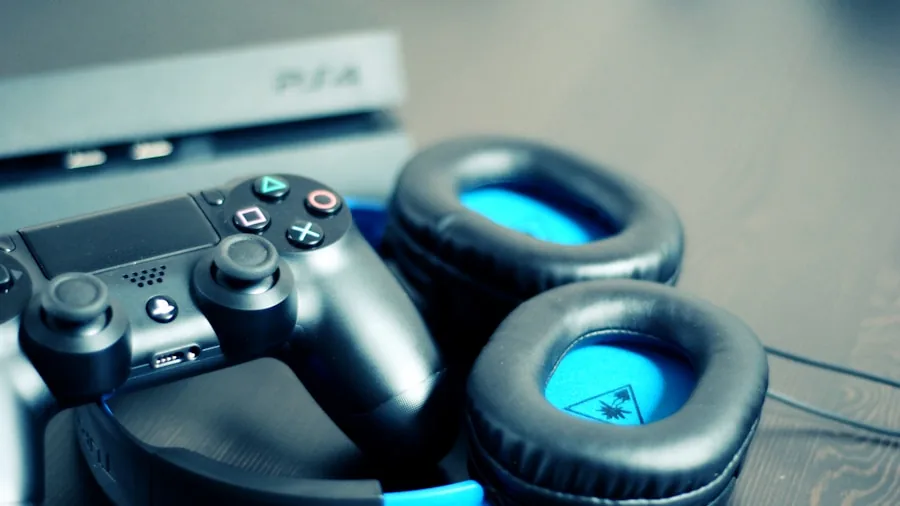
Most players assume the DualSense only works with PlayStation 5 and PC, but this controller is far more versatile. Your DualSense can connect via Bluetooth to smartphones running Android 12 or iOS 14.5 and later, tablets, smart TVs, streaming devices, and even the Steam Deck. Simply hold the PS and Create buttons until the LED begins blinking blue, then select the DualSense from your device’s available Bluetooth connections.
A recent update introduced multi-device connectivity, allowing you to pair your DualSense to up to four different devices simultaneously. You can switch between them instantly by holding the PS button and your desired face button (Triangle, Circle, X, or Square). The LED will blink a corresponding number of times to indicate which slot has been selected. This eliminates the frustration of repeatedly unpairing and re-pairing your controller when moving between gaming systems.
Navigation and Accessibility Shortcuts
The triangle button serves as an underrated but powerful navigation tool on your PS5. Rather than tediously using the D-pad to browse menus, simply press triangle to jump directly to the search bar from any screen, whether you’re on the home menu or browsing the PlayStation Store. This gives you instant access to settings and helps you find games and applications without prolonged menu navigation.
The PS button itself offers multiple functions beyond simple menu access. Double-tapping it opens Game Help, which provides hints and progress tracking for supported games. If you’re stuck at a particular location or hunting for trophies, this shortcut delivers guidance faster than navigating the full control center. For wireless controller management, holding the PS button for approximately 15 seconds will power down that specific controller without requiring console menu navigation, useful during gatherings when multiple controllers might be left connected.
Customizing Captures and Audio
The Create button functionality can be tailored to match your preferences through the Captures and Broadcasts settings. You can choose between Standard mode, Easy Screenshots for quick photo capture, or Easy Video Clips for recording gameplay. The default recording length adjusts anywhere from 15 seconds to one hour, and you can toggle save confirmation notifications.
For audio enthusiasts, the DualSense enables Sony’s Tempest Engine 3D audio through any wired headphones connected to the controller’s jack, or Bluetooth headphones with a USB adapter. Navigate to Audio Output in Settings and enable 3D Audio for Headphones. For an even more immersive experience, create a personalized 3D audio profile by following the seven-step calibration process, which maps directional audio based on your spatial awareness.
Enhancing PC Gaming Experience
When using your DualSense on PC, third-party software like DualSenseX and TriggerSense unlock advanced customization options unavailable through standard Windows settings. These tools allow you to modify haptic feedback intensity, customize the light bar color, and configure adaptive trigger responses for each game individually. Whether you want balanced, racing, or shooter-specific trigger configurations, these applications provide granular control over your controller’s behavior across different gaming titles.
Among popular gaming hardware, the DualSense remains exceptional when fully optimized. Understanding these hidden capabilities means you’re no longer leaving performance on the table. By enabling full haptic feedback, connecting across your device ecosystem, and leveraging system shortcuts, you transform your DualSense from a standard controller into a versatile gaming tool that adapts to your preferences and setup. Whether you’re a casual player or dedicated gamer, these features deserve exploration.
About the author
Serenity covers home game consoles for REMOVU, weighing performance, exclusive libraries, and the ecosystem each platform locks you into. She helps players pick the console that fits how and what they play.