10 Essential Tips to Maximize Your iPhone Battery Life Every Day
Simple settings changes and smart habits that keep your iPhone powered all day long.
 By Eleanor Garcia
Updated August 20, 2026
By Eleanor Garcia
Updated August 20, 2026
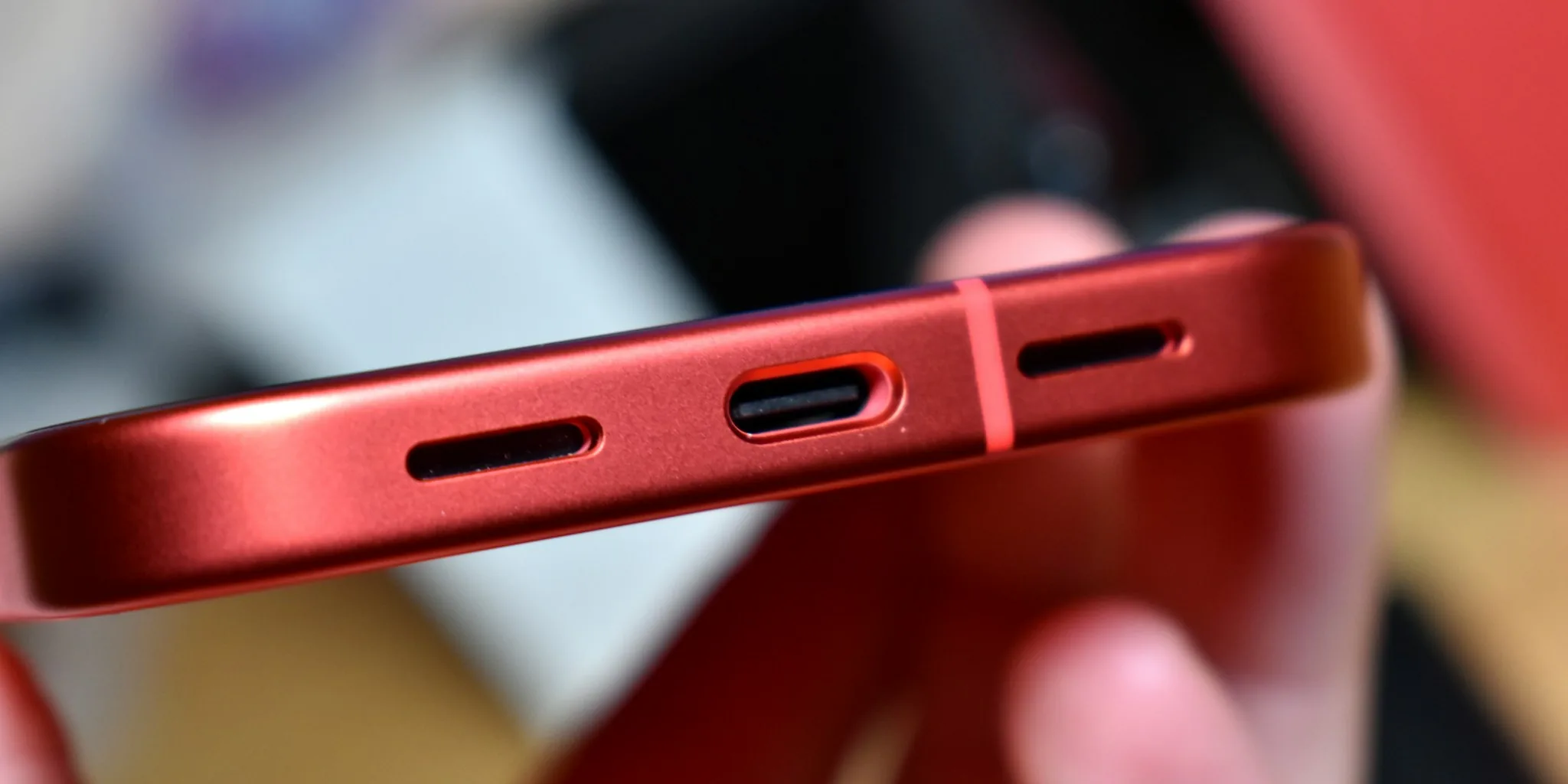
Your iPhone is built to handle demanding tasks and deliver impressive performance, but the reality of daily use often means your battery drains faster than you’d like. Whether you’re running an older model or the latest flagship, battery anxiety is real. The good news is that you have more control over your device’s power consumption than you might think.
1. Display Your Exact Battery Percentage
The battery icon in your status bar gives you only a rough estimate of remaining charge. To make smarter decisions about power usage, enable the precise battery percentage display. Go to Settings, tap Battery, and turn on Battery Percentage. Now you’ll see exactly how much juice remains, making it easier to plan when you need to charge and track how your usage habits affect battery drain throughout the day.
2. Activate Adaptive Power Mode
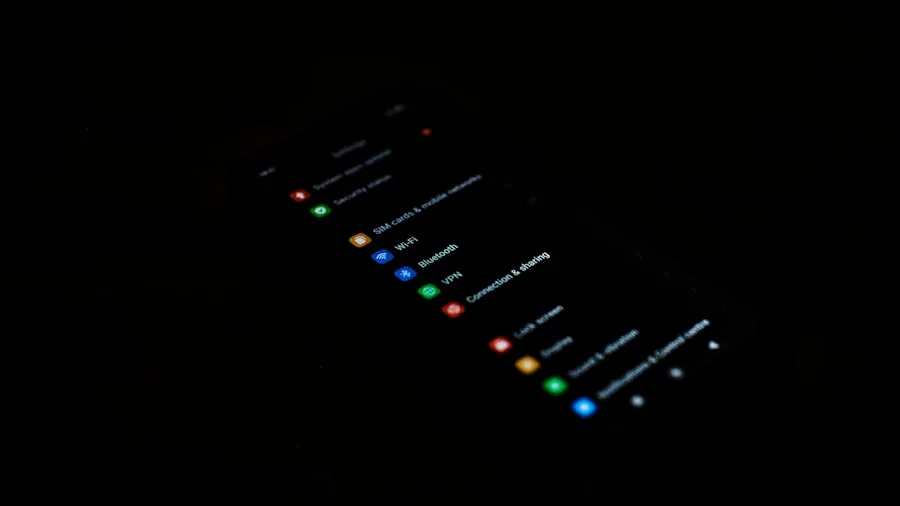
Modern iPhones include an intelligent feature called Adaptive Power mode that learns your behavior and adjusts performance automatically. This setting reduces screen brightness by 3%, limits background activity, and intelligently enables Low Power Mode when battery drops below 20%. Navigate to Settings, Battery, Power mode, and select Adaptive Power. If you have an iPhone 16 or older Pro models, you’ll need to enable this manually. Once active, your phone works smarter without requiring constant manual adjustments.
3. Enable Low Power Mode Proactively
Low Power Mode is one of your strongest defenses against unexpected shutdowns. This feature disables non-essential tasks like background app refresh, iCloud syncing, and mail fetching. While it activates automatically at 20%, you don’t have to wait that long. Enable it manually whenever you know you won’t have access to a charger soon. Access it through Settings > Battery > Low Power Mode, or add it to your Control Center for one-tap convenience. When active, your battery icon turns yellow as a visual reminder.
4. Reduce Screen Brightness Intelligently
Your display is the largest battery consumer on your device. Reducing brightness immediately improves longevity between charges. Open Settings > Display & Brightness and adjust the slider to a comfortable but dimmer level. You can also quickly access brightness control from the Control Center. Equally important is disabling Auto-Brightness, which you’ll find under Accessibility > Display & Text Size. This prevents your phone from automatically increasing brightness in bright environments, which often exceeds what you actually need.
5. Control Screen Auto-Lock Timing
Since your display drains battery fastest when active, manage how long it stays on after you put your phone down. Go to Settings > Display & Brightness > Auto-Lock and choose a shorter interval. Consider disabling Raise to Wake as well, since this feature turns on your screen whenever you pick up your phone, even if you didn’t intend to use it. A locked screen consumes virtually no power, so shorter auto-lock intervals significantly extend your battery life.
6. Turn Off Always-On Display When Needed
If you own an iPhone 14 Pro or later, the Always-On display shows time and widgets while locked. While Apple engineered this feature to minimize power drain, it still uses more battery than a completely dark screen. If you’re in critical battery-saving mode, disable it through Settings > Display & Brightness > Always On. Your phone will automatically turn off this feature when face-down, in your pocket, or when Sleep Focus is active, so you maintain convenience while protecting battery life.
7. Fine-Tune Location Services Per App
GPS constantly running in the background causes significant battery drain. Rather than disabling location entirely, which breaks many useful features, customize settings for individual apps. Open Settings > Privacy & Security > Location Services and select each app. Choose from Never, While Using the App, or Always. For navigation apps like Google Maps, select While Using the App so location tracking only activates when you need directions, not continuously in the background.
8. Disable Background App Refresh Selectively
Apps continue checking for updates and new content even when closed, which drains battery. Access Settings > General > Background App Refresh and review which apps are enabled. Email and social media apps are typically the heaviest consumers. You can disable the feature entirely, restrict it to Wi-Fi only, or turn it off for specific apps. Disabling it won’t prevent apps from working, but they may take a moment to refresh content when you open them next.
9. Limit Notifications That Light Up Your Screen
Every notification that appears on your lock screen requires your display to turn on, consuming battery power. Open Settings > Notifications and audit which apps can send alerts. Turn off lock screen notifications entirely for non-essential apps, or route them to Notification Center instead. For important apps you want to stay connected with, enable notifications but choose notification summary mode to batch them instead of constant interruptions. This also reduces the battery cost of repeated screen activation.
10. Disable Wireless Features When Unnecessary
Wi-Fi, Bluetooth, and cellular data continuously search for connections in the background. If you’re in a genuine power emergency, use Airplane Mode from your Control Center to disable all wireless features at once. For less drastic measures, turn off Bluetooth when not using wireless headphones or accessories, and disable Wi-Fi if you’re on a cellular connection. Many smartwatches and accessories for iPhone rely on Bluetooth, so disable it thoughtfully rather than leaving it on unnecessarily.
Consider Backup Power Solutions
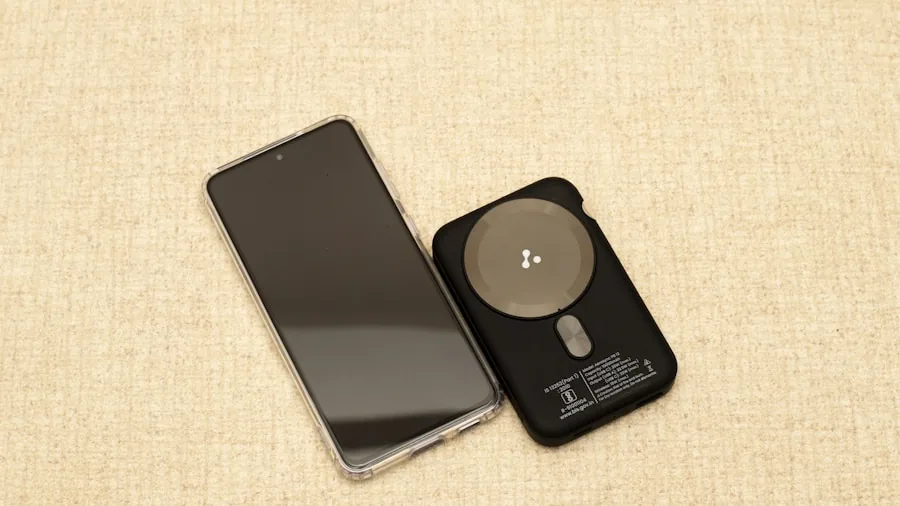
Sometimes extending battery life means having backup power available. External MagSafe power banks attach magnetically to your iPhone without requiring cables, letting you charge from anywhere. While smartphone manufacturers have limited built-in options, third-party solutions offer excellent value and flexibility for extended outings when charging access is limited.
Plan for Battery Replacement
Even with perfect usage habits, batteries degrade over time and eventually lose effectiveness. Your iPhone will notify you when battery health declines significantly. If you have AppleCare+, battery service is covered when capacity drops below 80% of original specifications. Alternatively, Apple’s Self Service Repair Store offers replacement batteries for $40 to $70 after you return your old component. Understanding your options means you can address battery problems affordably before they force an expensive device replacement.
About the author
Eleanor covers smartphones for REMOVU, balancing cameras, battery life, and software support against price. She helps readers find the best value as the field shifts with every release.