7 Tips for Managing Ad Blocking on Your iPhone Browser
Master Firefox's new experimental ad blocker for iPhone with these practical setup and usage tips.
 By Eleanor Garcia
Updated August 17, 2026
By Eleanor Garcia
Updated August 17, 2026
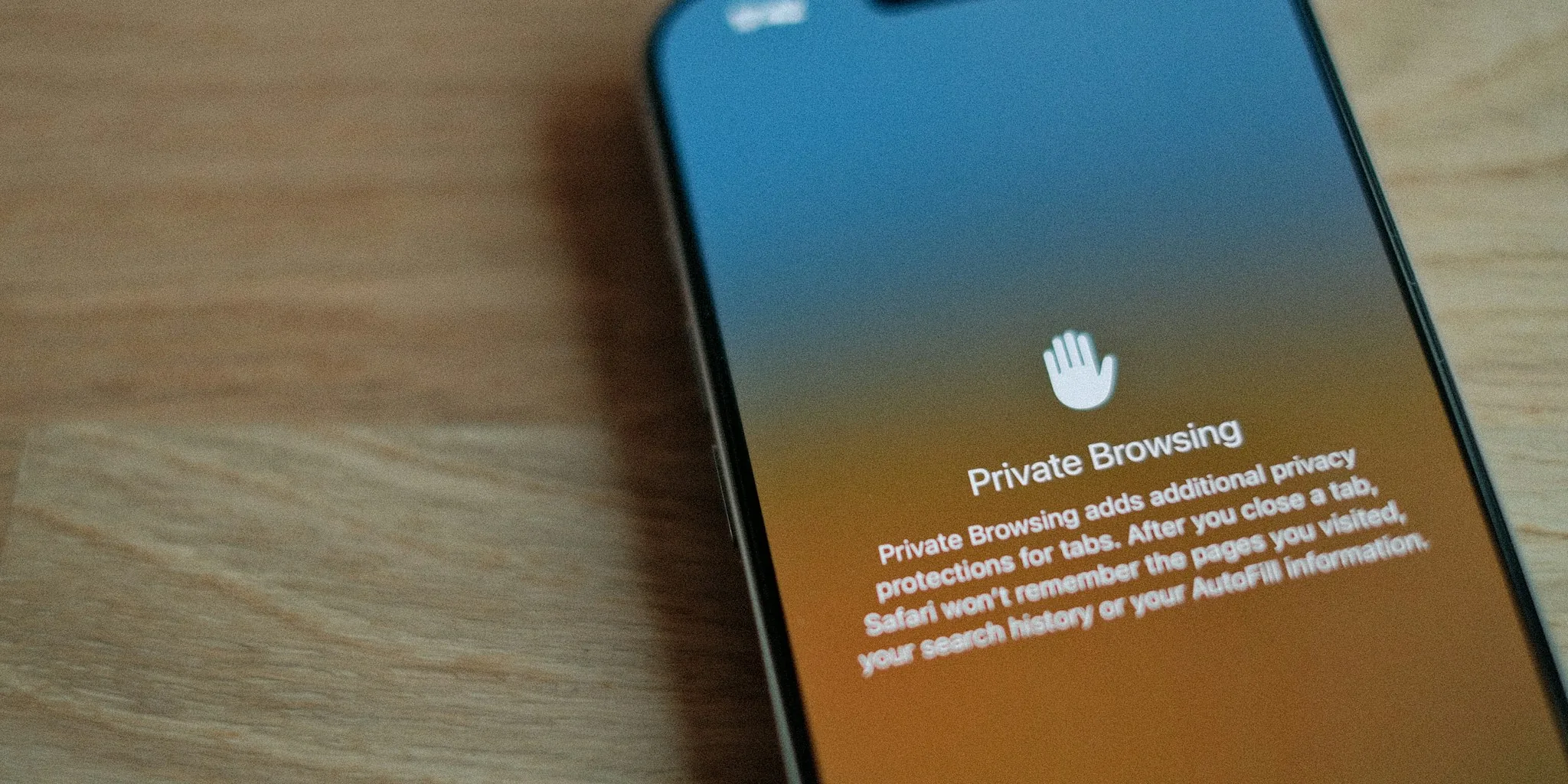
Understanding Ad Blocking Technology on Mobile Devices
Mobile browsing has evolved significantly over the past few years, with privacy and user experience becoming central concerns for both developers and consumers. One major shift involves how iPhone users interact with advertisements while navigating the web. Built-in ad blocking features are now available on some mobile browsers, allowing you to take control of your browsing experience without relying on third-party extensions or separate applications.
The latest advancement in this area comes from Firefox, which introduced an experimental ad-blocking tool for iOS users. This feature helps reduce unwanted advertisements and limits third-party tracking across websites you visit. Understanding how to properly enable and configure this option can significantly improve your browsing speed and overall satisfaction when using your device.
Tip 1: Locate the Ad Blocker Setting in Your Browser Menu
Finding the ad-blocking feature is straightforward once you know where to look. Open Firefox on your iPhone and tap the menu icon, then navigate to Settings and select Browsing. Within the Browsing settings, you’ll find a Content section that contains the ad blocker toggle. Keep in mind that this feature rolls out gradually to users, so availability depends on whether your device has received the latest update. If you don’t see it immediately, check back periodically as Mozilla continues expanding access.
Tip 2: Understand That Ad Blocking Is Optional and Disabled by Default
Mozilla designed the ad-blocking tool to be completely optional, meaning it remains off until you actively enable it. This approach protects users who may want an unfiltered browsing experience or those who rely on ads to support their favorite websites. You won’t need to create an account or sign up for any special service to use this feature. Simply toggle it on whenever you want protection and disable it if a website requires ads to display properly.
Tip 3: Know What Ads Will and Won’t Be Blocked
The ad blocker uses the EasyList filter system, a widely recognized standard for identifying unwanted advertisements. However, it’s important to understand its limitations. Search engine advertisements from Google, Bing, DuckDuckGo, and other search providers will remain visible, as these are considered essential to search functionality. Additionally, sponsored content from Mozilla’s own Firefox Home and New Tab pages continues to display regardless of your ad-blocking settings. This selective approach ensures you still see relevant search results while filtering out intrusive pop-ups, overlays, and banner ads.
Tip 4: Enable Ad Blocking from the Bottom Menu for Quick Access
If you’re already browsing and encounter a site cluttered with ads, you don’t need to dive into settings to activate protection. Look for the menu icon in the bottom-right corner of Firefox and tap it. You’ll see a Content section with an Ad Blocker toggle. This quick-access method allows you to switch blocking on and off without leaving your current page, making it ideal for instances where a website’s layout suddenly feels overwhelming with advertisements.
Tip 5: Recognize the Visual Indicators for Ad Blocker Status
Learning to identify whether ad blocking is active helps you understand why certain pages look different or load more quickly. When the ad blocker is enabled, you’ll notice small green shield icons with checkmarks next to both the Protections and Ad Blocker labels at the top of the site menu. When it’s disabled, these icons turn orange with an X symbol. These visual cues make it easy to quickly confirm your current protection level without opening settings.
Tip 6: Disable Blocking if Websites Appear Broken or Incomplete
Occasionally, legitimate website elements may be blocked if they’re classified similarly to advertisements. If a page looks broken, displays incorrectly, or seems to be missing important content, toggle the ad blocker off for that site. Some websites depend on specific ad placements for their layout to render properly. Mozilla includes a helpful warning in the feature description suggesting you try disabling it if a site looks damaged. You can always turn protection back on for other sites where it doesn’t cause issues.
Tip 7: Pair Ad Blocking with Other Privacy Features
For enhanced privacy protection while browsing on your iPhone, consider using ad blocking alongside other built-in security measures. Combined with complementary iPhone features and regular browser updates, a comprehensive approach to online safety provides stronger defense against unwanted tracking. The ad blocker specifically reduces ad-related trackers that follow you across websites, contributing to a more private browsing experience overall. Review your privacy settings periodically to ensure you’re taking full advantage of available protections.
Making the Most of Your Mobile Browsing Experience
Ad blocking technology represents a meaningful step toward reclaiming control over your digital experience. Firefox’s experimental tool gives iPhone users the ability to browse faster, avoid intrusive advertisements, and maintain better privacy when navigating the web. As this feature matures and becomes more widely available, familiarity with its capabilities and limitations will help you make informed decisions about when and where to enable it. Whether you prioritize speed, privacy, or supporting ad-based websites, understanding these seven tips ensures you can customize your browsing to match your preferences and needs.
About the author
Eleanor covers smartphones for REMOVU, balancing cameras, battery life, and software support against price. She helps readers find the best value as the field shifts with every release.