7 Tips to Prepare Your Apple TV Before tvOS 27 Rolls Out
Prepare your Apple TV before tvOS 27 rolls out with these seven practical steps for a seamless update.
 By Maxine Hansen
Updated September 9, 2026
By Maxine Hansen
Updated September 9, 2026
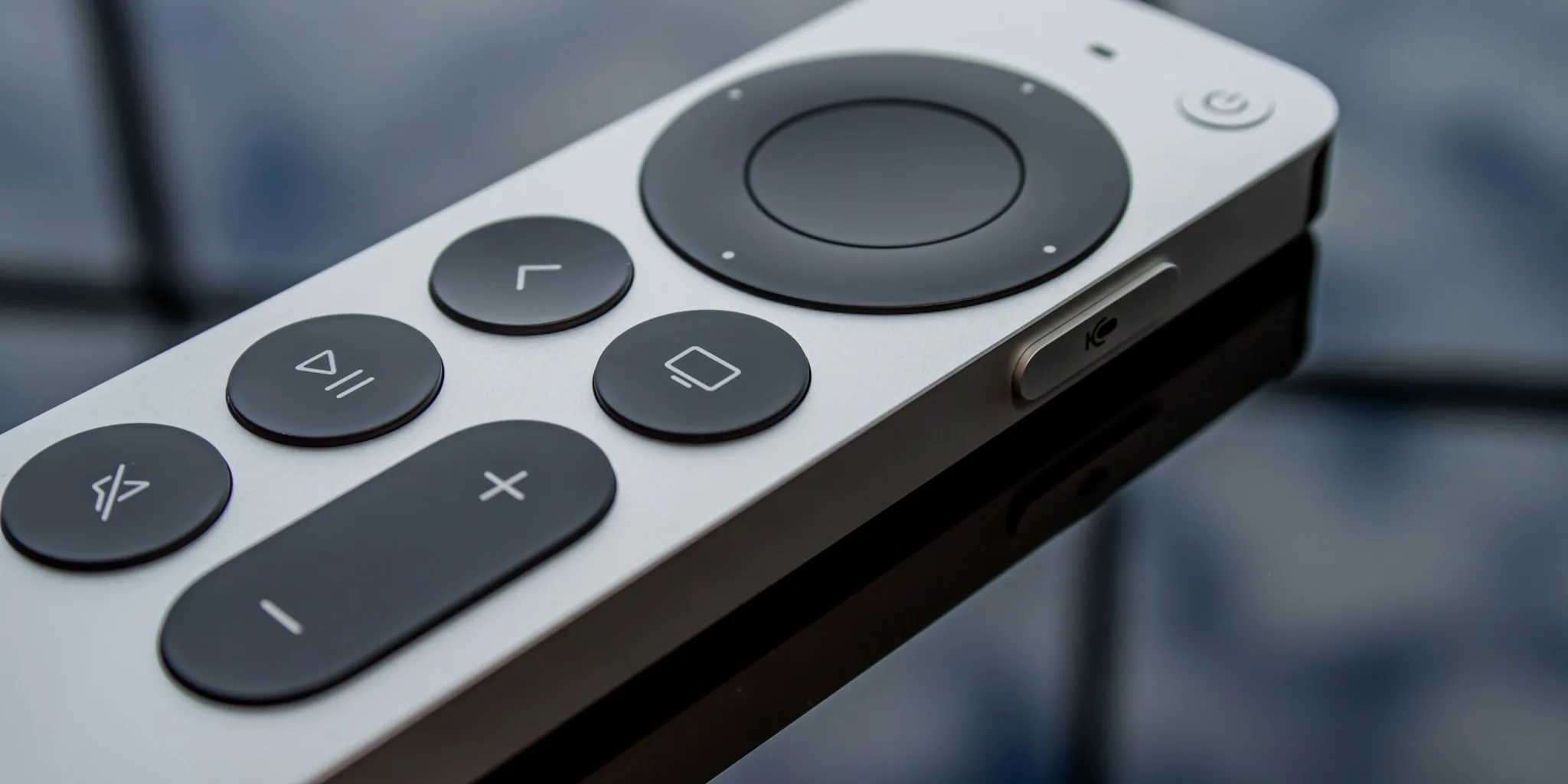
Apple’s tvOS 27 is rolling out to Apple TV devices, and while the initial release candidate has already begun its distribution, the official launch is just around the corner. If you own an Apple TV and want to ensure a smooth installation when the final version becomes available, preparation is key. Here are seven practical steps to get your device ready for this important software update.
1. Check Your Device Compatibility
Not every Apple TV model supports the latest tvOS versions. Before you start preparing, verify that your device is compatible with tvOS 27. Apple TV 4K models from recent years will typically receive these updates, but if you’re using an older model, you may need to check Apple’s official specifications. Knowing your device’s compatibility status prevents wasted time and frustration later.
2. Ensure Adequate Storage Space
Major software updates like tvOS 27 require sufficient storage to download and install properly. Navigate to your Apple TV’s Settings app and check the available storage under System > Storage. You should aim for at least 5 to 10 GB of free space to allow the update to install without complications. If storage is low, consider deleting unused apps or clearing cached data before the rollout begins.
3. Confirm Your Network Connection
A stable and fast internet connection is crucial for downloading tvOS 27 without interruption. Use a reliable Wi-Fi network rather than an unstable connection. If your Apple TV frequently experiences connectivity drops, consider relocating your router closer to the device or using a Wi-Fi extender to strengthen the signal. A solid connection ensures the update downloads completely and applies without errors.
4. Update Your Other Apple Devices First
While tvOS 27 is rolling out for your Apple TV, your iPhone, iPad, and Mac may also be receiving companion updates. Installing these updates on your other devices first creates a cohesive ecosystem and ensures compatibility between all your Apple products. This approach can prevent unexpected compatibility issues after the tvOS update is complete.
5. Back Up Your Settings and Preferences
Before major updates, it’s wise to back up your current configuration. Note down any custom settings, paired remotes, connected devices, and installed apps you rely on regularly. While tvOS updates typically preserve your settings, having a backup gives you peace of mind and makes troubleshooting easier if something goes wrong. You might also screenshot your Home app configuration for reference.
6. Disable Auto-Updates Temporarily if Needed
If you prefer to install tvOS 27 on your own schedule rather than letting it install automatically overnight, navigate to Settings > AirPlay and HomeKit > Software Updates and toggle off automatic updates. This gives you control over when the update happens, allowing you to choose a time when you’re available to monitor the process. However, remember to re-enable automatic updates afterward for future releases.
7. Prepare for the Installation Process
When tvOS 27 is ready to install, plan for a window of 30 to 60 minutes when you won’t need your Apple TV. The installation process requires your device to restart, and it should remain powered on throughout. Keep your remote nearby and avoid disconnecting power during the update. If you encounter issues, documentation and support guides will be available through Apple’s website.
What to Expect After Installation
Once tvOS 27 finishes installing, your Apple TV will restart and display the new interface. Take time to explore any new features or interface changes. If you’ve researched upcoming features, you’ll recognize the improvements designed to enhance your streaming experience. For users concerned about security or specific functionality improvements, reviews are expected shortly after the official release becomes available to all users.
Interestingly, keeping your Apple TV current also ensures better compatibility with other devices in your smart home. If you’ve invested in security cameras without subscription or other smart home equipment, a properly updated Apple TV helps these systems communicate more reliably through HomeKit.
By following these seven preparation steps, you’ll be ready when tvOS 27 becomes available to the general public. Taking time now to prepare prevents common installation issues and ensures your Apple TV runs smoothly with the latest features and security updates. Whether you update immediately or wait a few days, your preparation work today will pay dividends tomorrow.
About the author
Maxine is REMOVU's TV writer, comparing OLED, QLED, and LED sets on picture quality, gaming features, and value. She helps readers cut through a crowded field to the right screen.