7 Tips for Resetting Your Discontinued Google Home Mini and Getting It Running Again
Step-by-step instructions for resetting your Google Home Mini speaker and getting it back online.
 By Ava Herrera
Updated September 26, 2026
By Ava Herrera
Updated September 26, 2026
Understanding Why a Reset Becomes Necessary
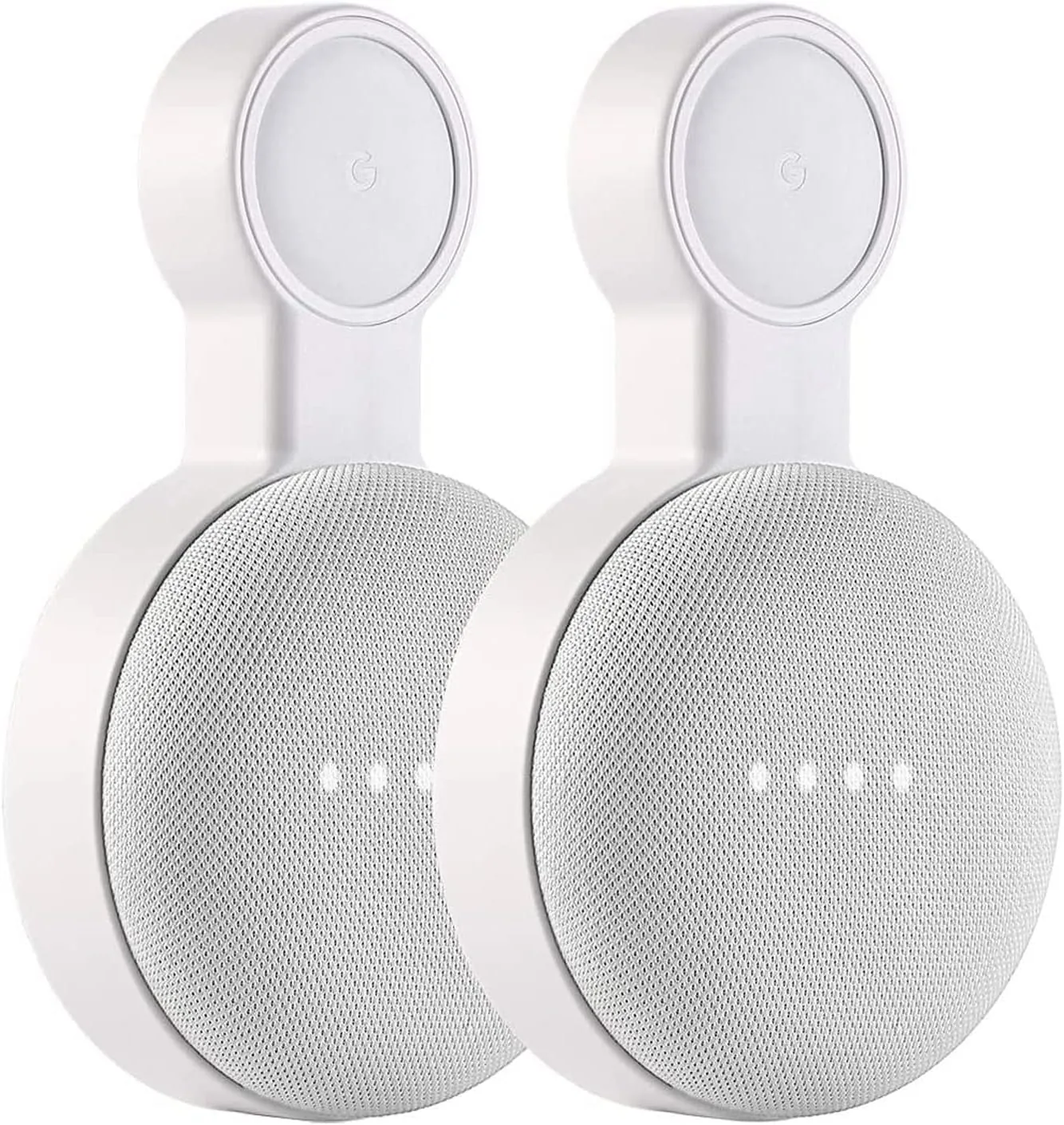
Google Home Mini speakers have remained functional for years, even after the manufacturer discontinued production. Resetting your device becomes essential for several practical reasons: the speaker no longer responds to voice commands, you’re experiencing Wi-Fi connectivity issues, you need to switch to a different Google account, or you’re preparing to pass the device to someone else. The good news is that performing a factory reset requires no specialized knowledge or tools, and the entire process takes just a few minutes.
Tip 1: Distinguish Between Your Google Home Mini Model
Google released multiple generations of the Home Mini, and the reset procedure differs slightly between them. The original Google Home Mini (1st generation) uses one method, while the Nest Mini (2nd generation) requires a different approach. Display models like the Nest Hub have their own distinct reset process. Before you begin, identify which version you own by checking the device packaging or the manufacturer’s website. This ensures you follow the correct steps for your specific model.
Tip 2: Know That Voice Commands and Apps Cannot Trigger a Reset
One critical fact to remember: you cannot reset your Google Home Mini using voice commands or through the Google Home mobile application. The reset function is only accessible through the physical buttons on the device itself. This design choice prevents accidental resets and ensures that only someone with direct access to the speaker can perform the operation. Always plan to use the hardware controls rather than attempting any software-based workarounds.
Tip 3: Locate the Reset Button on First-Generation Models
If you own the original Google Home Mini, flip the speaker upside down and look at the bottom surface. Just beneath where the power cord connects, you’ll find a small circular indentation. Press and hold this button for approximately five seconds to initiate the reset sequence. Continue holding it for an additional ten seconds until you hear a confirmation chime, which signals that the reset process has completed successfully.
Tip 4: Use the Microphone Switch for Nest Mini Devices
The Nest Mini (2nd generation) features a different reset mechanism. First, locate the microphone on/off toggle on the side of the device and switch it to the off position. You’ll see the LED lights begin to pulse orange, indicating the microphone is disabled. Next, press and hold the center of the device where the LED lights are located. Maintain pressure for about five seconds to start the reset, then continue for another ten seconds until you hear the confirmation chime.
Tip 5: Reset Display Models Using Both Volume Buttons
For larger display devices like the Nest Hub, the reset process involves pressing and holding both volume buttons on the rear of the unit simultaneously. Apply pressure for approximately ten seconds, and the screen will display a reset notification. Once you see this confirmation, release the buttons and allow the device several moments to fully restart before attempting any new setup procedures.
Tip 6: Understand What a Factory Reset Actually Removes
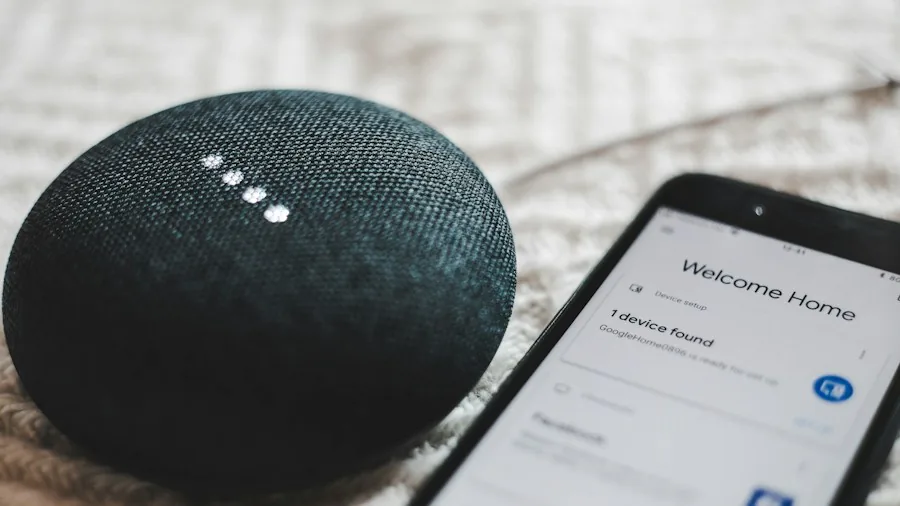
A complete factory reset returns your Google Home Mini to its original state, identical to when it first came out of the box. This action permanently erases all personal data stored on the device, including saved Wi-Fi network credentials, linked Google accounts, and household member connections. Because this change cannot be reversed, first consider whether a simple reboot might solve your issue. Disconnect the speaker from power for one minute and reconnect it. This approach resolves minor glitches without erasing any information. If you’re experiencing connection problems, mesh WiFi systems worth buying for every home size might help improve overall network reliability.
Tip 7: Properly Reconfigure Your Device After Reset
Once the reset completes, your speaker is essentially a blank slate. To get it working again, open the Google Home application on your smartphone or tablet. Tap the plus icon and select the option to set up a new device. Follow the in-app instructions to reconnect your speaker to your Wi-Fi network and link it to your Google account. If you encounter connection difficulties during this process, Google’s official support documentation contains comprehensive troubleshooting guidance. For households looking to expand their smart home setup, smart home hubs worth buying for every setup can complement your existing devices seamlessly.
Factory resetting your Google Home Mini is a straightforward process once you understand the specific steps for your model. Whether you’re troubleshooting connectivity issues, preparing the device for a new owner, or simply starting fresh, these seven tips provide a clear roadmap for success. The manufacturer continues to support discontinued models with software updates and security patches, so your reset device remains secure and functional for years to come.
About the author
Ava is REMOVU's laptop writer, balancing speed, battery life, and build quality against price across the whole range. She helps readers find the sweet spot as each new chip shifts what a dollar buys.