7 Practical Tips to Maximize Your Apple Watch Battery Life
Extend your Apple Watch battery life with these practical settings adjustments that actually work.
 By Kristen Jennings
Updated November 10, 2026
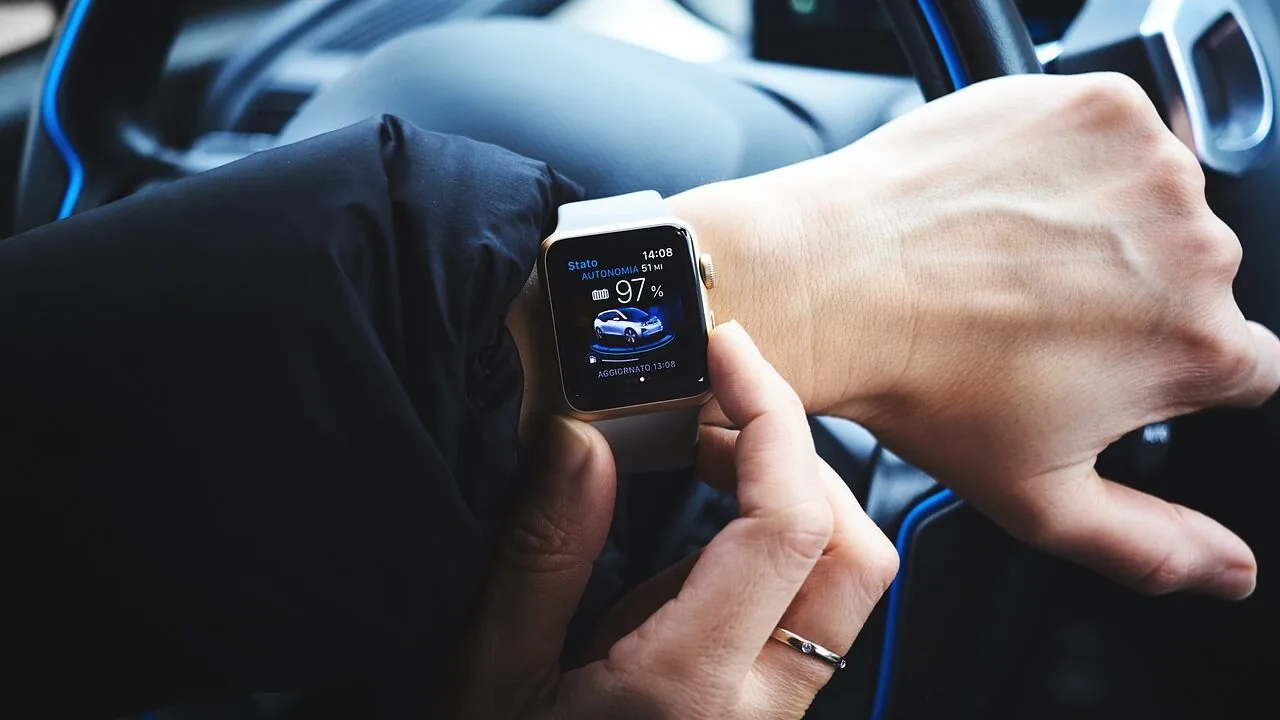
Your Apple Watch is designed to keep up with your active lifestyle, but battery drain can become frustrating during long days or travels. While manufacturers often provide conservative battery estimates, real-world usage patterns vary significantly based on which features you have enabled and how frequently you interact with your device. Understanding which settings consume the most power and how to adjust them strategically can dramatically extend the time between charges.
1. Activate Low Power Mode When You Need It Most
Low Power Mode is your Apple Watch’s built-in battery preservation system, comparable to the feature found on your iPhone. When activated, this mode intelligently restricts or disables several power-hungry functions that run continuously in the background. Background blood oxygen and heart rate monitoring pause, hypertension detection stops collecting data, and irregular rhythm alerts turn off. The always-on display deactivates, gesture controls like double-tap and wrist flick cease functioning, and workout reminders disappear. Additionally, animations become less fluid and background app refreshes occur less frequently.
You can enable Low Power Mode manually through the Control Center by pressing the Side button and tapping the battery percentage, or navigate to Settings, then Battery, then Low Power Mode. A convenient option lets you activate the mode for one, two, or three days rather than just until you turn it off manually. A yellow indicator appears at the top of your screen when this mode is active. This approach proves especially useful during extended travel days or when you know you won’t have access to charging for extended periods.
2. Disable the Always-On Display
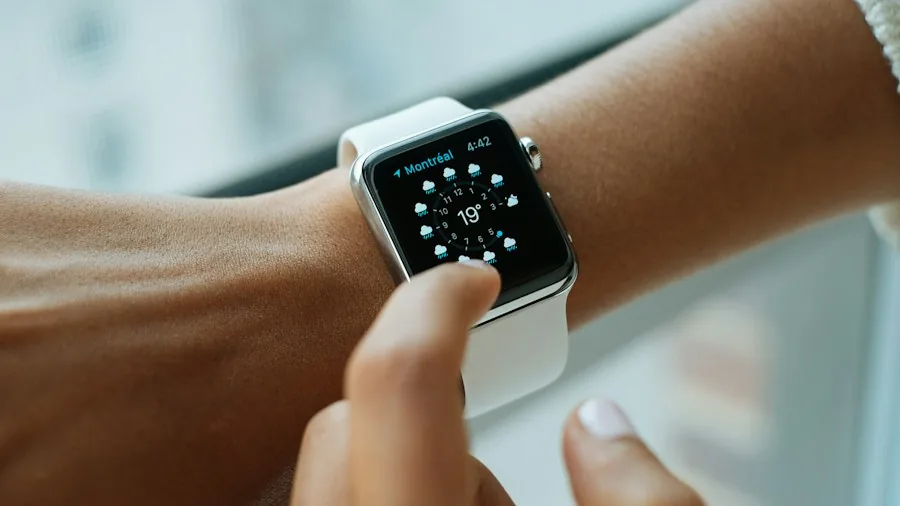
The Always-On Display feature, standard on Apple Watch Series 5 and all newer models, keeps your screen illuminated even when your wrist is down. While convenient for quick glances, this constant screen activity significantly drains your battery. If you prefer not to enable the broader Low Power Mode and only want to eliminate this specific drain, you can disable the Always-On Display independently. Access Settings, navigate to Display and Brightness, find the Always On option, and toggle the switch to turn it off. You’ll need to tap your screen to view information, but this simple change can substantially extend your device’s runtime.
3. Turn Off Wake on Wrist Raise
Your Apple Watch automatically activates and displays the screen whenever you raise your wrist, a convenient feature that unfortunately consumes battery with every gesture. Disabling this functionality requires accessing Settings, selecting Display and Brightness, and turning off Wake on Wrist Raise. When this feature is disabled, simply tap your screen to view the display. You can also customize how long the screen remains active after you tap it, choosing between 15 seconds and 70 seconds. Shortening this duration provides another opportunity to reduce overall power consumption.
4. Reconsider Battery Optimization Settings
Apple Watch includes a battery optimization feature that analyzes your daily charging habits to supposedly improve overall battery longevity. Newer models also feature an optimized charge limit that supposedly determines when charging should stop. However, these protective measures can paradoxically reduce the hours your device runs between charges. If you’re experiencing shorter battery life than expected and you prioritize daily runtime over long-term battery health preservation, you can temporarily or permanently disable these features. Go to Settings, select Battery, then Battery Health, and toggle off Optimized Battery Charging or Optimized Charge Limit. You have the option to disable these features until tomorrow or permanently, giving you flexibility based on your immediate needs.
5. Enable Airplane Mode Strategically
When you’re in an area without requiring connectivity, activating Airplane Mode mirrors the function available on your iPhone and significantly reduces battery drain by disabling wireless radios. Navigate to Settings and select Airplane Mode, then decide whether to disable both Wi-Fi and Bluetooth or just Wi-Fi. Completely disabling Bluetooth will sever the connection between your watch and iPhone, preventing notifications and calls. Many users prefer leaving Bluetooth enabled while turning off only Wi-Fi, providing a middle ground that reduces power consumption while maintaining essential smartphone integration.
6. Monitor Your Battery Status Regularly
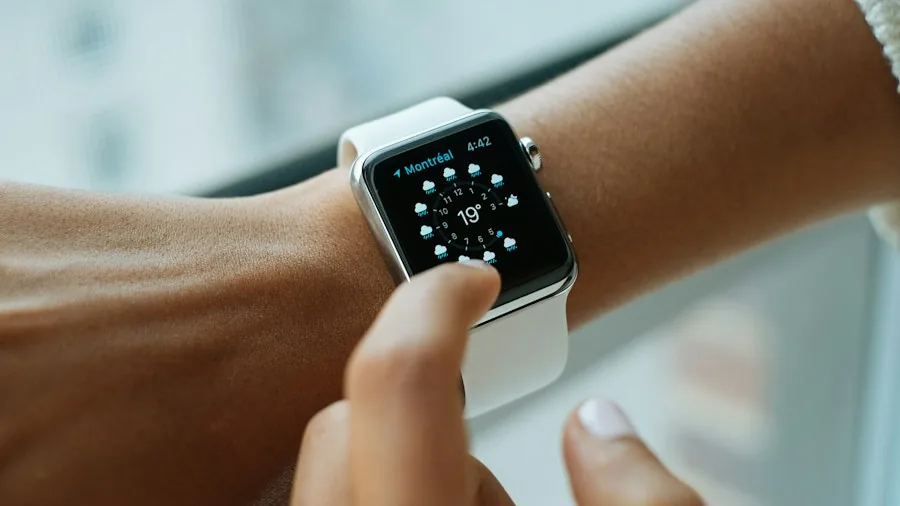
Understanding how much charge remains helps you make informed decisions about when to enable power-saving measures. You can view your battery percentage instantly by pressing the Side button to open Control Center. For more detailed information, including historical battery levels from the past 24 hours, go to Settings, swipe down, and select Battery. This data helps you identify usage patterns and determine which features consistently impact your runtime most significantly.
7. Explore Your Device’s Age and Model Considerations
Battery performance varies considerably depending on your specific model. Check what smartwatch model you own to understand its rated battery specifications. Older models have shorter rated battery life compared to newer releases, so adjusting expectations and implementing battery-saving measures earlier in the day makes sense if you’re using an earlier generation model. If you’re considering an upgrade, exploring smartwatches under 200 dollars that offer improved battery performance might align with your needs.
By systematically implementing these strategies based on your daily schedule and usage patterns, you can reliably extend your Apple Watch’s runtime significantly beyond its standard estimates. Start with the most impactful changes like Low Power Mode and Always-On Display settings, then fine-tune additional features based on which ones affect your specific usage patterns most noticeably.
About the author
Kristen writes about smartwatches for REMOVU, comparing features, battery life, and ecosystem fit. She helps readers tie together health tracking, notifications, and apps on the right watch.