10 Settings You Should Change First on Your New Pixel 11
Unlock your Pixel 11's full potential with these critical settings adjustments.
 By Eleanor Garcia
Updated August 30, 2026
By Eleanor Garcia
Updated August 30, 2026
Congratulations on your new Pixel 11. While Google’s latest flagship delivers excellent performance out of the box, the default configuration doesn’t unlock the full potential of what this device can do. Several powerful features remain disabled or hidden in settings menus, waiting for you to activate them. By making a few quick adjustments, you’ll transform your experience and access capabilities that should have been front and center from day one.
Customize Your Camera Look Before Shooting
The Pixel 11’s camera system represents a significant leap forward, and the new Camera Looks feature gives you unprecedented control over your images. Rather than applying filters after capture, this tool lets you choose your preferred color grading and tone before you press the shutter button. You’ll find four distinct HDR processing levels under the default setting, plus additional stylized looks that dramatically alter contrast and saturation.
Access this by tapping the settings icon in the bottom right corner of the camera app, then swipe through available styles to select your preferred default. This small change ensures every photo matches your aesthetic from the moment of capture.
Activate Creator Suite Tools for Social Media
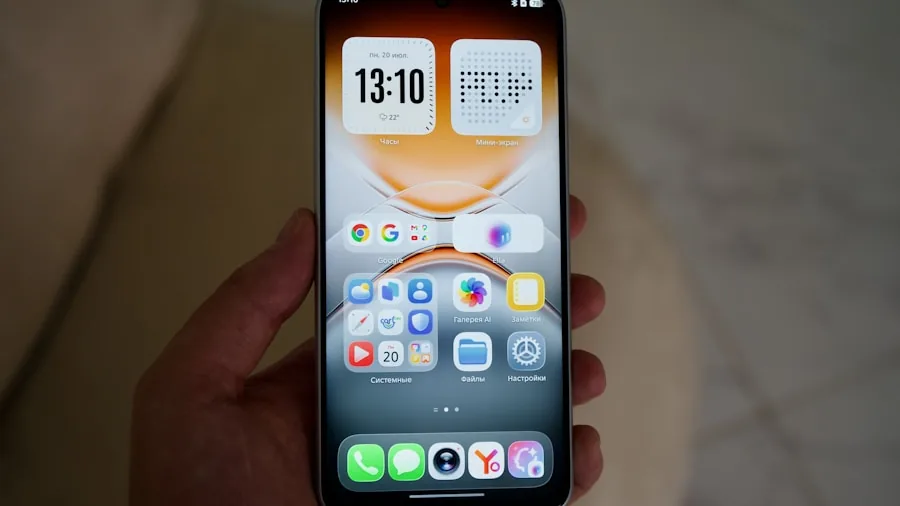
Google invested heavily in creator-focused features for the Pixel 11, including a built-in teleprompter that displays scripts directly on your screen while recording. Social media grid lines overlay your video to show exactly where captions, usernames, and Like buttons will appear on platforms after upload. These tools don’t come enabled by default, but enabling them takes just moments in your camera settings.
For content creators and anyone recording videos regularly, these features eliminate the guesswork and help you frame content with professional precision. Combined with quality recording equipment like the best microphones for YouTube creators, your production value will improve noticeably.
Enable Extreme Charging for Speed
Google added Extreme Charging to match similar capabilities from OnePlus, Oppo, and Vivo. This feature temporarily boosts your charging speed when you’re in a hurry, though it only activates when your battery drops below 50 percent. You’ll need to manually enable it each time you want faster charging, but the time savings during peak usage hours makes it worthwhile.
When you need a quick charge, plug in your device and navigate to Settings, then Battery and charging, then Extreme Charging and tap Turn on now. This straightforward process takes seconds but delivers meaningful results.
Display Exact Battery Percentage
The status bar battery icon provides only a rough estimate of remaining power. By enabling the battery percentage display, you’ll see the exact figure at a glance. Navigate to Settings, Battery and charging, and toggle on Battery Percentage. This simple adjustment eliminates uncertainty about whether you need an immediate charge or can wait another hour.
Assign HiLight Colors to Your Favorite Contacts
The Pixel 11 Pro models feature HiLight, an innovative multicolor LED on the back that can display different colors based on incoming calls. You control which contacts trigger which colors by assigning them individually. Start by favoriting a contact by tapping the star icon, then find the HiLight Color option in that contact’s settings. Choose your preferred color and save. This feature adds a personalized touch while helping you identify important calls at a glance.
Enable Adaptive Connectivity for Better Networks
Weak Wi-Fi connections frustrate everyone. The Adaptive Connectivity setting lets your Pixel automatically switch to cellular data when connected to a slow Wi-Fi network. This means you’ll never be stuck on painfully sluggish connections when moving around your house or through areas with patchy coverage. Head to Settings, Network and internet, Adaptive Connectivity, and toggle on Auto switch to mobile network.
Activate Notification History
Accidentally dismissing important notifications happens to everyone. Notification History keeps a record of all recent notifications, including dismissed ones, accessible whenever you need to retrieve something. Enable this by navigating to Settings, Notifications, and toggling on Use notification history. This safety net prevents information loss and reduces anxiety about missing critical alerts.
Add Widgets to Your Lock Screen
Lock screen widgets let you access information without unlocking your phone. Weather, stocks, task lists, and calendar events appear directly on your lock screen for quick reference. Enable this feature by going to Settings, Lock screen, More lock screen settings, and toggling on lock screen widgets. Once enabled, swipe right from your lock screen to view your chosen widgets. While you’re there, customize the shortcuts on both sides of your lock screen for quick access to frequently used functions.
Set Up Now Playing
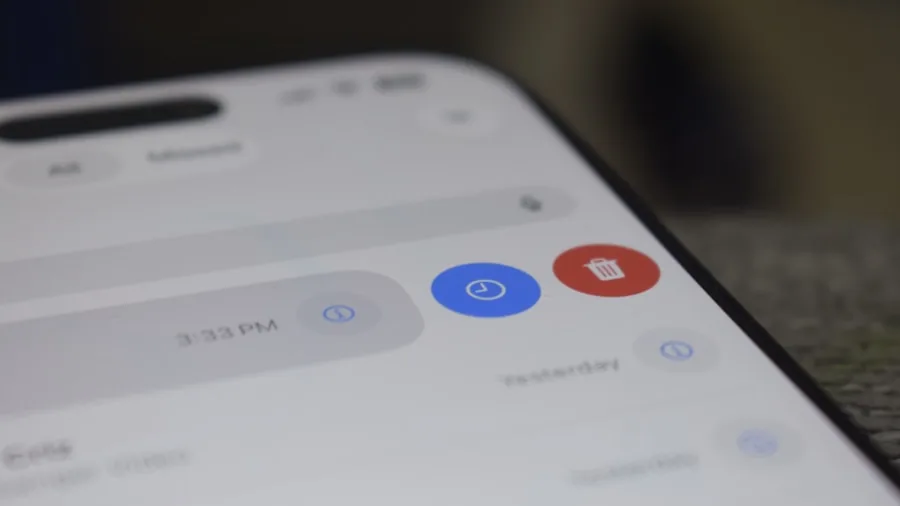
Now Playing automatically identifies songs playing around you and displays the title on your lock screen. It also maintains a history of songs you’ve heard, making it simple to find that tune you heard at a cafe but forgot to look up. The feature comes easier to locate this year thanks to its dedicated app. Open the Now Playing app from your drawer, tap the settings icon in the top right, and ensure Use Now Playing is enabled.
Configure Emergency Features
Finally, take moments to set up safety features like Car Crash Detection. If your Pixel detects a serious accident, it can vibrate, sound an alarm, and ask if you need help. If you confirm or don’t respond within a set time, the phone can contact emergency services and share your location. Navigate to Settings, Safety and emergency, Car Crash Detection, and enable the toggle. You can also enable Emergency Sharing to automatically alert your emergency contacts with your location during critical situations. This feature takes minutes to configure but could prove invaluable.
These ten adjustments represent the most impactful changes you can make immediately after purchasing your Pixel 11. Each one enhances a different aspect of your experience, from photography and content creation to safety and connectivity. Your new device will feel noticeably more capable once you’ve enabled these features.
About the author
Eleanor covers smartphones for REMOVU, balancing cameras, battery life, and software support against price. She helps readers find the best value as the field shifts with every release.